DELETE THIS SECTION WHEN READY
Important: Read Before You Begin
PLEASE NOTE: To get you up and running quickly, we've included these guidance notes to complement Systeme.io’s thorough help resources. Please keep in mind that these are suggestions for a standard workflow; you are encouraged to adapt the pages to suit your specific business needs.
DISCLAIMER: This design template is a foundational tool for your business. By using this funnel, you acknowledge that you are responsible for the final content, legal compliance, and technical setup of your offer. Skinny Ltd. is not responsible for any technical issues arising from the platform, payment gateway failures, or the legal validity of your terms and conditions.
For technical assistance or platform-specific questions, the Systeme.io support pages and team remain your best resource for up-to-date support.
LINK PAGE NOTES
1. What This Page Is For
This is your "Digital Business Card" and the central hub for your brand. On social media, you usually only get one link this page ensures that one link works incredibly hard for you.
To Do: Update your social media profile link to this exact page URL.
Customizing: Swap the placeholder image for your own photo. Why? People connect with faces; this builds immediate trust.
Branding: Change colors and fonts in Page Settings (top left). Consistent branding makes you look professional.
2. Setting Up Your Buttons and Offers
Buttons are your "Call to Action" (CTA). They tell your visitor exactly what you want them to do next.
To Do: Click each button to change the text and the link destination.
The Lead Magnet Link: One button must link to your separate Lead Magnet Page. Why? This is your main tool for building an email list—your most valuable business asset.
3. The Email Sign-Up Form (Newsletter)
This form is a "safety net" to capture people who like your vibe but aren't ready to grab your specific freebie yet.
The Setup: Click the button and ensure "Action when button clicked" is set to "Submit form." * Why this matters: If you set it to "Open URL" instead of "Submit form," the system won't actually save the email address to your database.
Connecting the Automation (The "Brain")
Once you save the page, you must tell the system what to do with the new email.
Exit the editor and go to Funnel Step Settings > Automation Rules.
Trigger: "Funnel step form subscribed."
Action: Choose "Add a tag" (e.g., Newsletter List).
Why? Tags act like digital folders, keeping your subscribers organized so you can email them later.
4. Optimizing for Mobile Viewers
Most of your traffic will come from mobile phones. It is vital that the page looks clean on a small screen.
Checking Your Work: Don't just rely on the editor. Open the "Live" URL on your actual mobile phone. Make a change in the SIO editor, save it, and refresh your phone browser to see the real-world result.
Visibility Toggles: If an element looks great on Desktop but messy on Mobile, you can hide it. Click the element, scroll to the bottom of the left-hand menu, and look for "Item visible on."
The Pro Move: You can create a simplified version of any section, set the original to "Desktop Only," and set your new, cleaner version to "Mobile Only."
5. The Footer Strategy (Two-Part System)
To keep your page professional and high-converting, your footer is split into two distinct sections. Using Master Blocks is the "pro way" to manage these across your entire funnel.
A. The Master Block Secret
The Goal: You don’t want to manually update your links on every single page if you ever change your handle or business name.
How to do it: Once you have customized a footer section, click the Save (floppy disk) icon on that section and check the box "Create a master block."
The Benefit: Now, when you edit this block on one page, the changes instantly "ripple" across every other page. Edit once, update everywhere.
B. Section 1: The Brand Footer (Socials & Logo)
This section is for building your brand and connecting with followers.
Social Icons: Click each icon. Set the "Action when button is clicked" to "Open URL" and paste your profile link.
The "New Window" Rule: Always toggle "Open in a new window" to ON.
Why? You want your social profile to open in a new tab so that your Bio Link page stays open in the background.
C. Section 2: The Legal Footer (Copyright & Policies)
This section keeps you legally compliant. You have two clear choices for how to handle your legal links:
Choice 1: The Pop-up Method (Pre-set in this Template)
We have already linked the footer text to pop-ups for you: Terms & Conditions is linked to Pop-up #1 and Privacy Policy is linked to Pop-up #2.
Important Note: Pop-ups are unique to each page. If you use this footer as a Master Block on a new page, you must also create a Pop-up #1 and Pop-up #2 on that new page for the links to work.
Why? This keeps users on your page (better for sales) and counts as zero pages toward your Systeme.io plan limit.
Choice 2: External Redirection (If you host policies elsewhere)
If you already have your legal documents on a website or a public Google Drive/Dropbox link, follow these steps:
Highlight the text (e.g., "Privacy Policy") and click the Link icon.
Delete the existing link to the pop-up.
Select URL and paste your external link.
Crucial: Set it to "Open in a new window" and check the "No-follow" box.
Why? "No-follow" tells search engines to focus on your main content, and "New window" ensures users don't accidentally close your funnel.
Update to: © [Year] [Your Business Name]. All Rights Reserved. Keep this text small and neutral so it doesn't distract from your main buttons.
6. SEO and Tracking (Crucial Step)
IMPORTANT: This step is not a "one and done." You must do this for EVERY SINGLE PAGE in your funnel (The Bio Link page, the Lead Magnet page, the Thank You page, etc.).
SEO: In the Funnel Step Settings, fill in the Page Title and Description. This is what people see when your link is shared on social media or appears in a Google search.
Tracking: Paste your Facebook Pixel or Google Analytics code in the "Tracking code" section.
Why? Without this, you are "flying blind." Tracking tells you exactly how many people visited and which buttons they clicked. If you don't repeat this on every page, your data will be incomplete and inaccurate.

Michelle Taylor-Wright
Executive Coach
Empowering entrepreneurs to thrive in the digital landscape Let's elevate your online business game!
Unlock Your Leadership Potential: 1:1 Coaching Session
Your career growth should be focussed on strategic action. Master the mindset and behaviors of top-tier leaders and accelerate your path to executive success.
Session Fee: £325
Exclusive Training Session: The 3 Core Pillars of High-Impact Leadership
Dive into cutting-edge strategies, practical tips, and hands-on guidance to propel your brand forward.
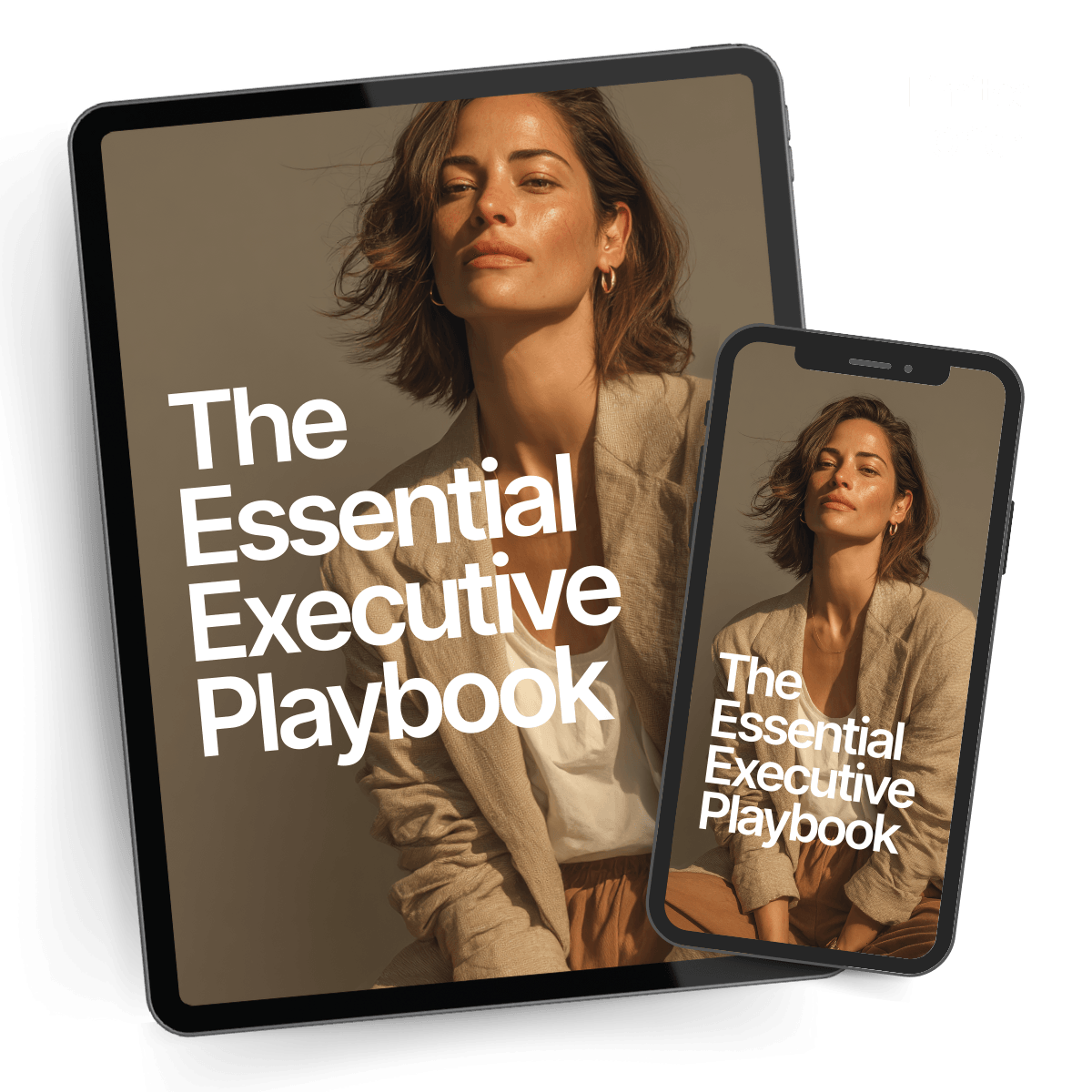
Free: Your Essential Executive Playbook
Go beyond theory with a practical guide to elite leadership. This essential playbook delivers actionable strategies and real-world frameworks to help you navigate complex challenges and lead with unwavering confidence.
You are agreeing to be added to our mailing list.
You can unsubscribe at anytime.

Online Training Course: Grow Your Marketing Potential
Dive deeper into specific marketing tactics with our focused workshops. Join industry experts for practical sessions, case studies, and actionable strategies to implement right away.
Training Session: Unlock Your Marketing Potential
Dive into cutting-edge strategies, practical tips, and hands-on guidance to propel your brand forward.
Keep Ahead of the Curve: Subscribe to My Newsletter
The landscape of leadership is always evolving. Get exclusive insights, proven strategies, and a curated analysis of industry trends delivered directly to your inbox every week.
You can unsubscribe at any time


© 2026 Your Co. Name. All Rights Reserved Terms and Conditions. Privacy Policy Design by Skinny Created.